
hivemux quick start for Claude Code sessions
After installing hivemux, open Ghostty, run hm ~/code/api to start a project with Claude in window 1, and press Option+0 whenever a session is waiting for you. prefix then Shift+C adds another named Claude to the same project; prefix is Ctrl+A with the recommended keys.
Before you start
Section titled “Before you start”Install hivemux first: see Install. The examples use two folders, ~/code/api and ~/code/web; use your own.
Six steps
Section titled “Six steps”- Open Ghostty. You are inside tmux: a status line at the top and the sidebar on the left.
- Open a project.
hm ~/code/apiopens project api with Claude running in window 1. - Open a second project.
hm ~/code/webopens another. The first keeps working in the background. - Watch the sidebar.
Option+0takes you to whatever is waiting for you. - Add a Claude.
prefixthenShift+Cadds another named Claude to the current project. - Close Ghostty whenever you like. Open it again and you are back where you were.
hm ~/code/apihm ~/code/webProjects, windows and panes
Section titled “Projects, windows and panes”hivemux maps tmux concepts to your work:
- Project = tmux session.
hm <dir>creates one session per folder, named after the folder, or switches to it if it already exists. Inside the folder, plainhmis enough. - Window = tab. A new project has
1:claude, which runs Claude asclaude -n <name>, and2:shellfor git, dev servers and other commands. Tabs live in tmux’s status line, not in Ghostty. - Sidebar. Every window has the same board on its left, showing every Claude in every project.
prefix s shows the session list; prefix then a window number switches windows. All keys are on the Keys page.
Reading the sidebar
Section titled “Reading the sidebar”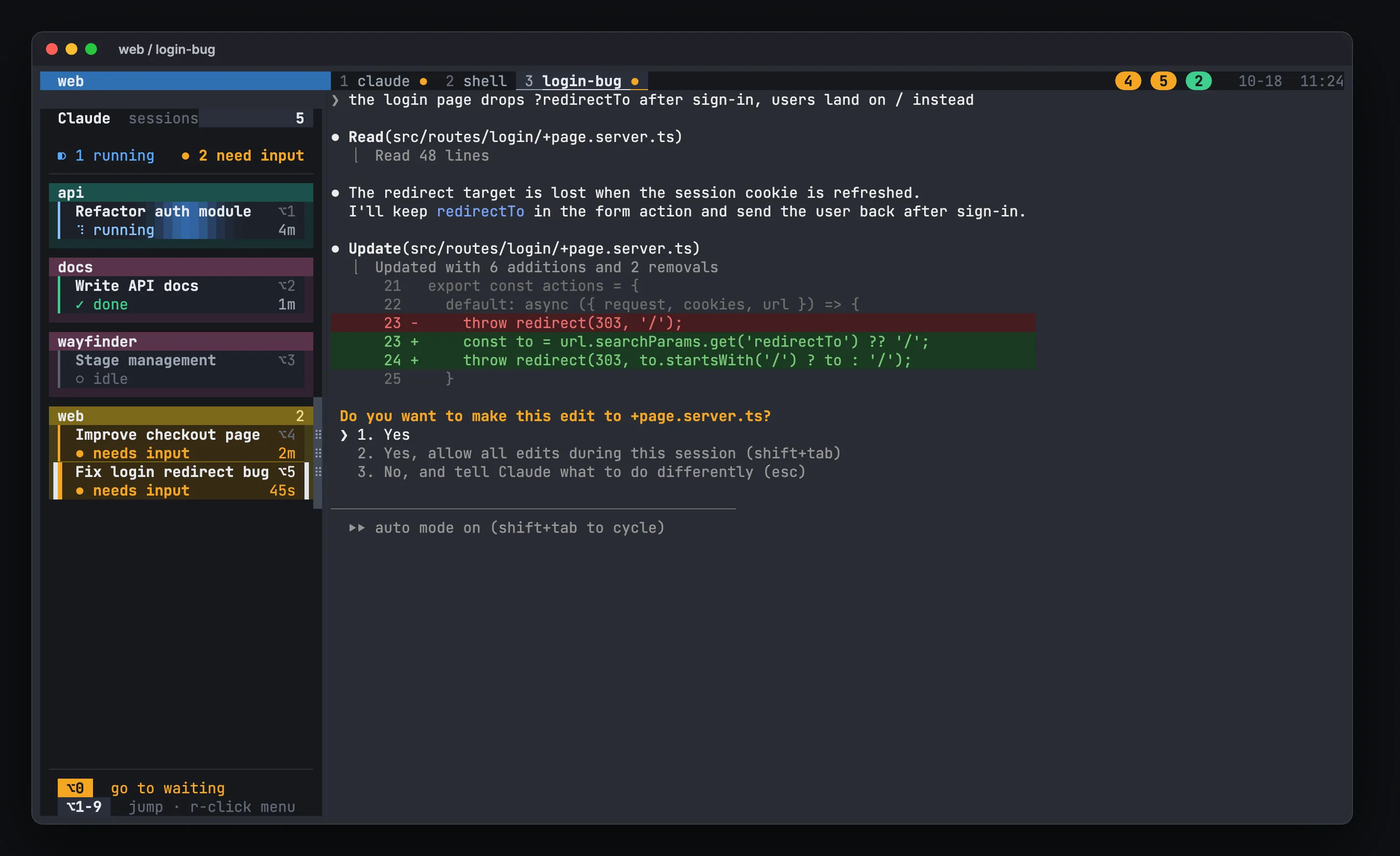
| Card | Meaning | What to do |
|---|---|---|
| ● needs input | Waiting for an approval or an answer. The card pulses amber; the time is how long it has waited | Look at it first: Option+0 |
| ✓ done | Finished, not seen yet. Green bar | Check the result; it turns idle once you look |
| ◐ running | Working. A light band sweeps across; the time is how long it has run | Let it work |
| ○ idle | Waiting for your next request; you have seen the result | Go there to give a new task |
The task you are looking at has a white line on each side. The ⌥ number at the top right of each card is its Option+number key.
Name your tasks
Section titled “Name your tasks”The task name shows above Claude’s input box, in the /resume list, in the Claude phone app and in the terminal title. hm uses the folder name, and prefix Shift+C uses the name you type. To rename a running task, double-click its card (or right-click → Rename); hivemux sends /rename to that Claude, waiting if it is busy.
When you start Claude yourself in a tmux pane, name it:
claude -n login-bugStart a project from the sidebar
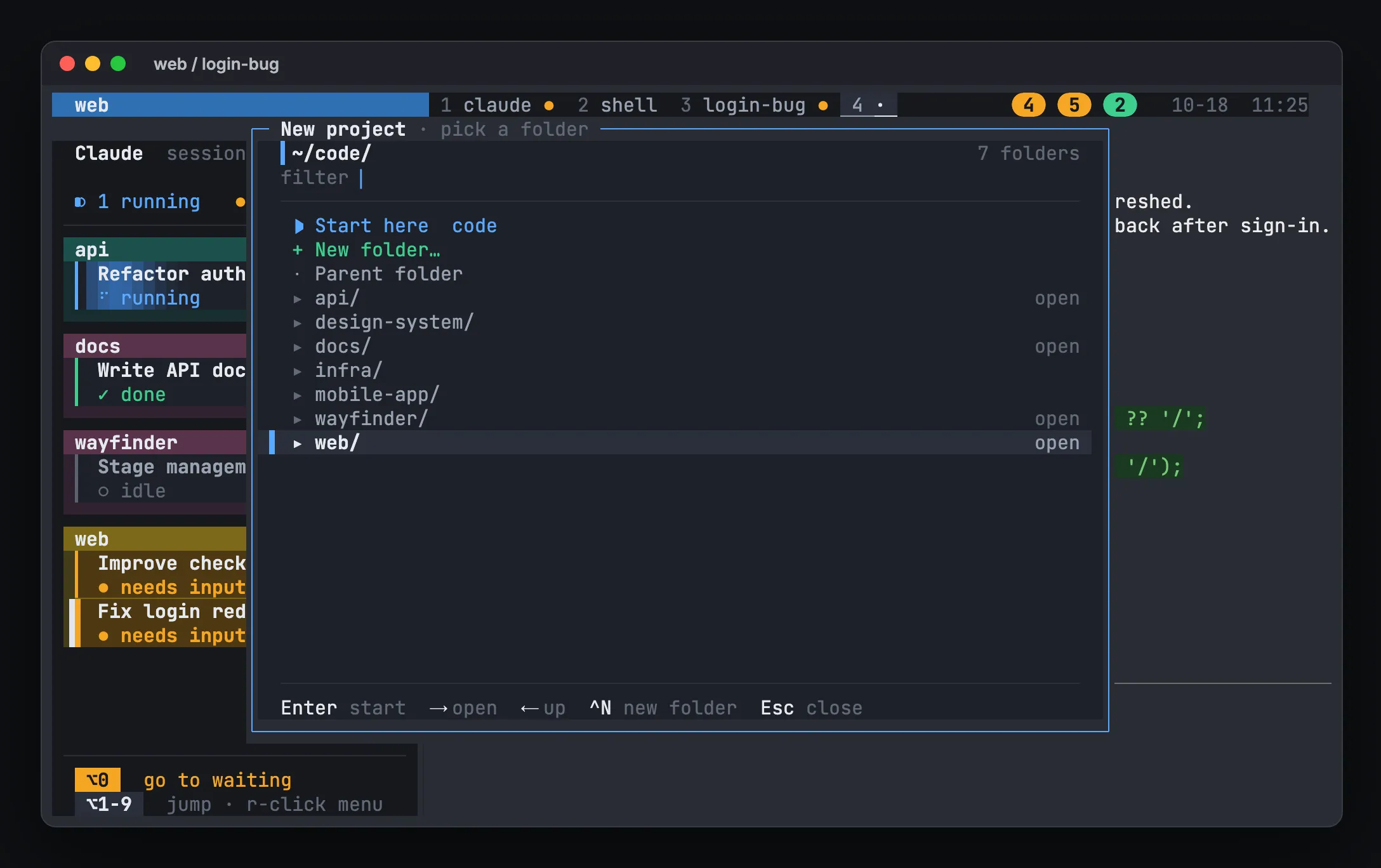
Section titled “Start a project from the sidebar”Right-click the sidebar → New project opens a folder browser. Enter starts the selected folder like hm, → / ← move in and out, typing filters, and Ctrl+N makes a new folder.
At the end of the day
Section titled “At the end of the day”Just close Ghostty. Running Claudes keep working inside tmux. After a reboot, tmux-resurrect restores the layout and hivemux resumes each pane’s conversation with claude --resume <id>. Sessions you ended with /exit are not resumed. Read more in Resume Claude Code sessions.
Next steps
Section titled “Next steps”- Keys: every shortcut and mouse action
- Bee office: every session as a bee in an office window
- Work from another Mac: continue from a laptop over ssh
- Claude Code notifications: how waiting and finished alerts work