
hivemux keys and shortcuts reference
hivemux’s main keys need no prefix: Option+1 … 9 jump to that Claude in any session, Option+0 jumps to the oldest waiting Claude, Option+O opens a file path from recent output, and Option+W lists forwarded dev server ports. The rest use the tmux prefix, which is Ctrl+A with the recommended keys (otherwise tmux’s Ctrl+B).
How prefix keys work
Section titled “How prefix keys work”Press Ctrl+A, release it, then press the next key. The recommended keys move tmux’s prefix from Ctrl+B to Ctrl+A because Claude Code uses Ctrl+B. Upper and lower case are different keys: prefix c opens a shell window, prefix Shift+C opens a named Claude.
hivemux keys
Section titled “hivemux keys”| Key | Action |
|---|---|
Option+1 … 9 |
jump to that Claude (any session) |
Option+0 / prefix Space |
oldest waiting Claude, else oldest unseen finished one |
| click card / project name | jump · double click a card: rename. A project whose Claude windows are all closed stays listed (“no Claude”) until you close it |
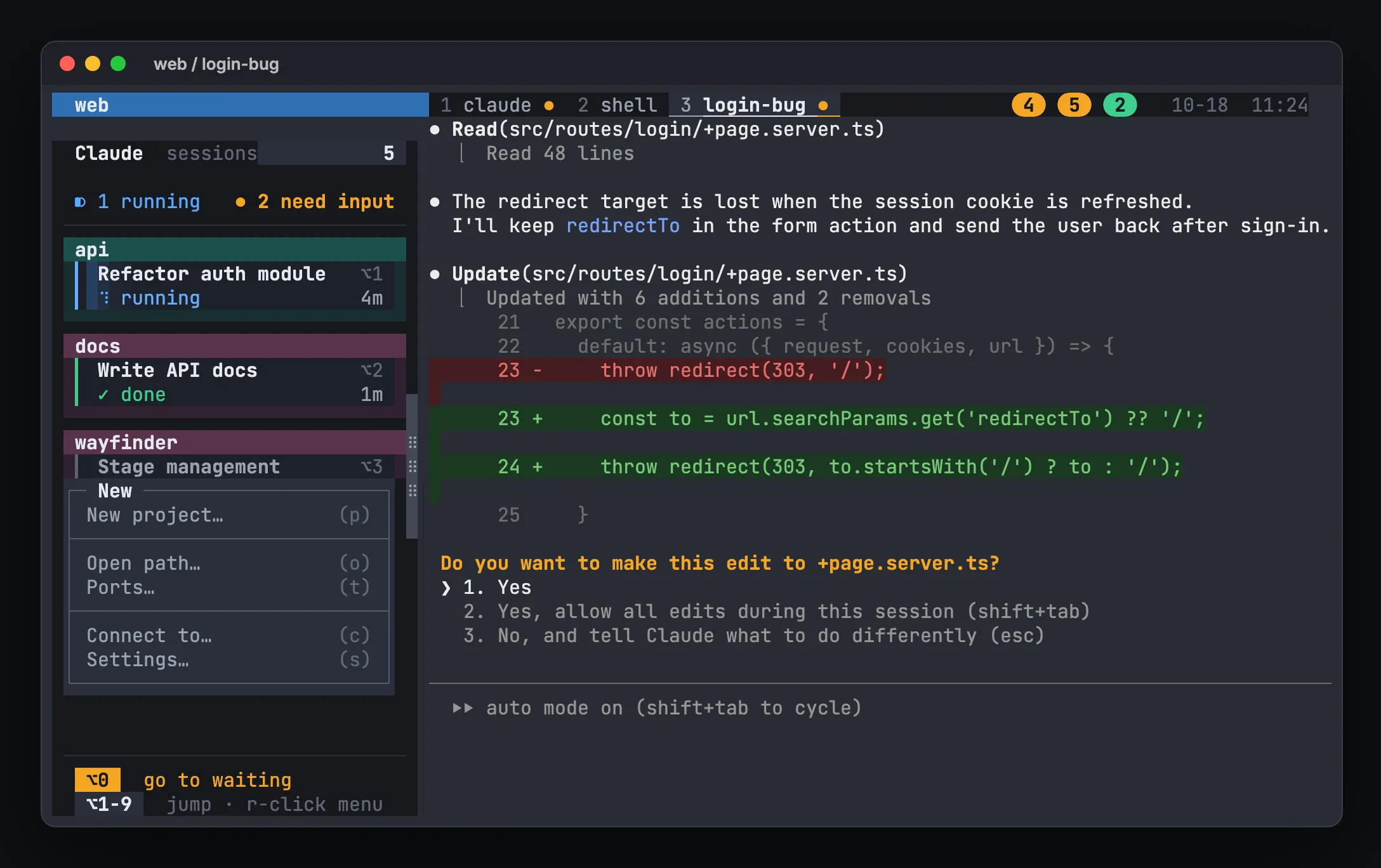
| right click | menu. On a task: go to, rename, move up/down, new Claude, new project. On a project name: rename, close project, new Claude, new project. On empty space: new project. Every menu ends with Open path…, Ports…, Bee office, Update Claude…, Connect to… and Settings. Choose with the mouse, ↑↓ Enter or the letter shown; Esc closes |
| menu → New project | folder browser in the middle: Enter starts the selected folder (like hm), → / ← in and out, type to filter, Ctrl+N new folder |
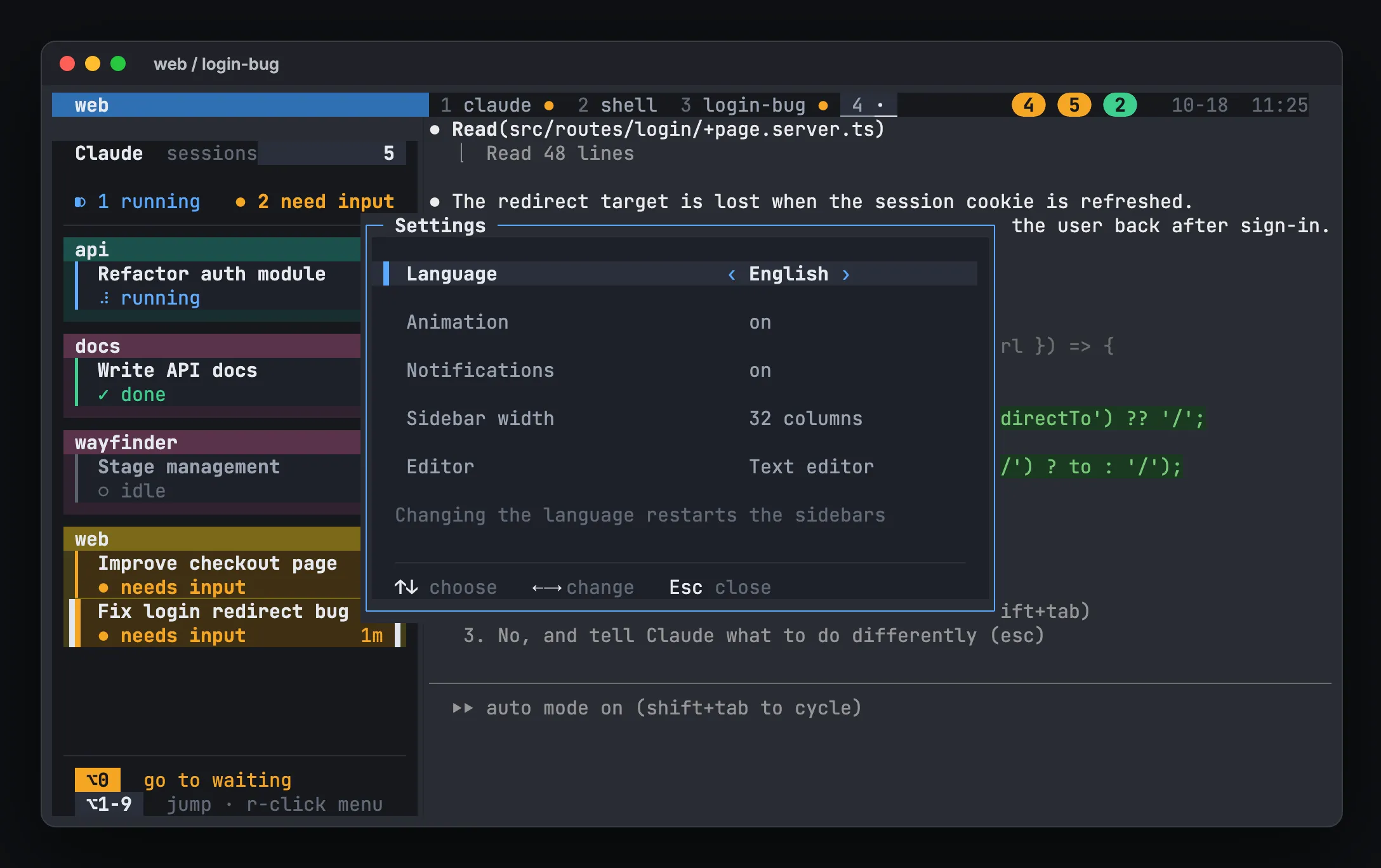
| menu → Settings | language (한국어 / English), animation, notifications, sidebar width, editor for Open path, this Mac’s name (shown in the bee office and on remote screens); applied at once and saved |
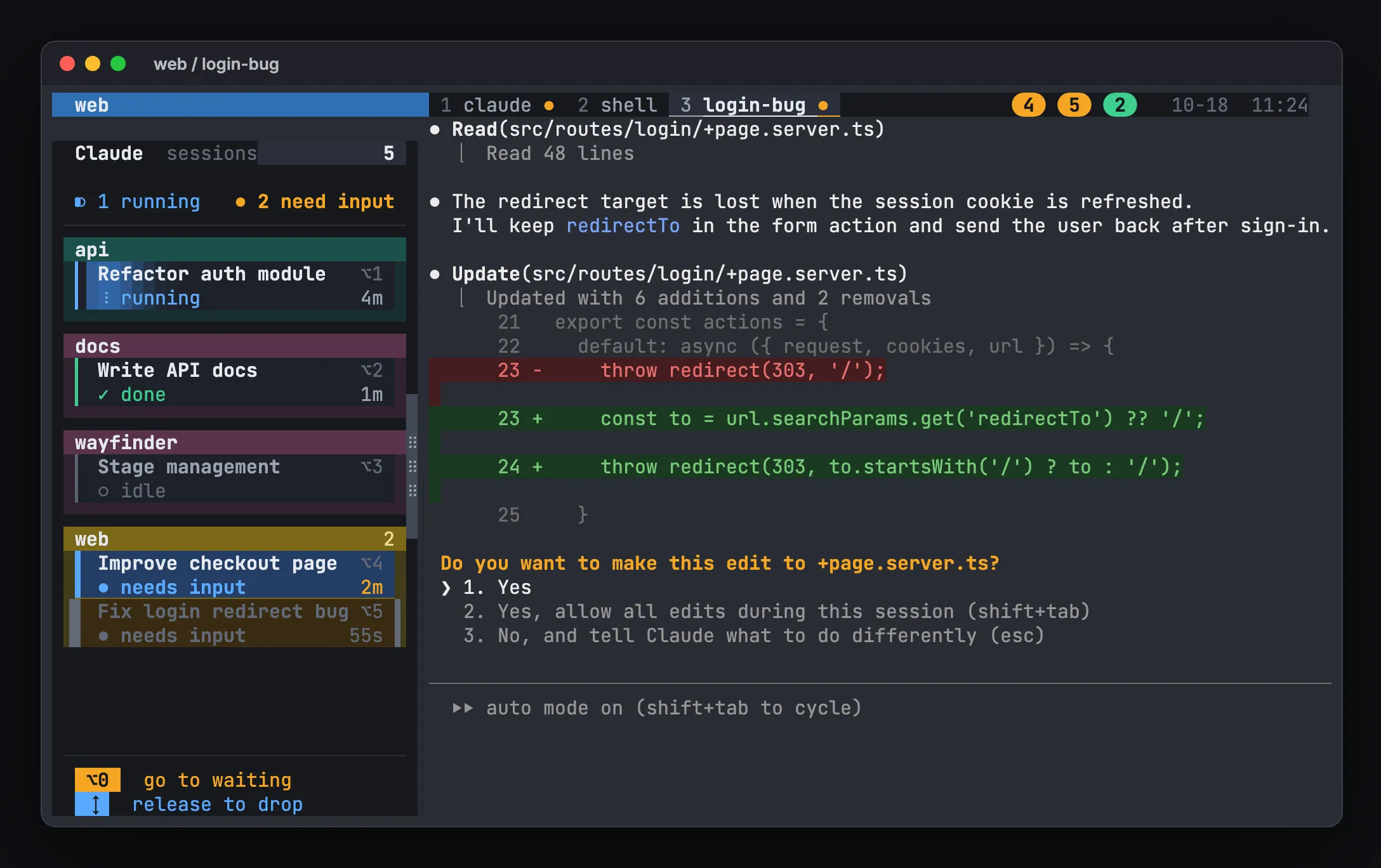
| drag card / project header | reorder tasks / projects |
prefix Shift+↑ / ↓ |
move the current task up / down (at a project’s edge, the project moves) |
Option+O / menu → Open path |
open a file path from recent output (Enter editor from Settings, Tab default app, ^F Finder, ^Y copy) |
Option+W / menu → Ports |
dev server ports forwarded between Macs (Enter opens in the browser of the Mac they reach, ^Y copies the address) |
prefix Shift+C |
new window with a named Claude in this folder |
| menu → Connect to… | another Mac’s hivemux in a new Ghostty window (hosts added with hivemux connect --add) |
prefix Shift+H |
connect to the last remote host again |
prefix Shift+B |
open the bee office window (also the 🐝 button at the top of the sidebar) |
prefix Shift+R |
Remote Control server window (start new sessions from the phone) |
prefix b |
hide / show sidebars |
prefix s / prefix Shift+S |
session list / full tree |
| drag the sidebar grip | resize; width is saved. Wider: project boxes in 2–3 columns |
| mouse wheel on the sidebar | scroll when the list does not fit (shared by every window) |
Option+number needs Ghostty to send Option as Alt. hivemux setup sets macos-option-as-alt = true; a Ghostty that was already open needs a full quit and restart.
Right-click menu
Section titled “Right-click menu”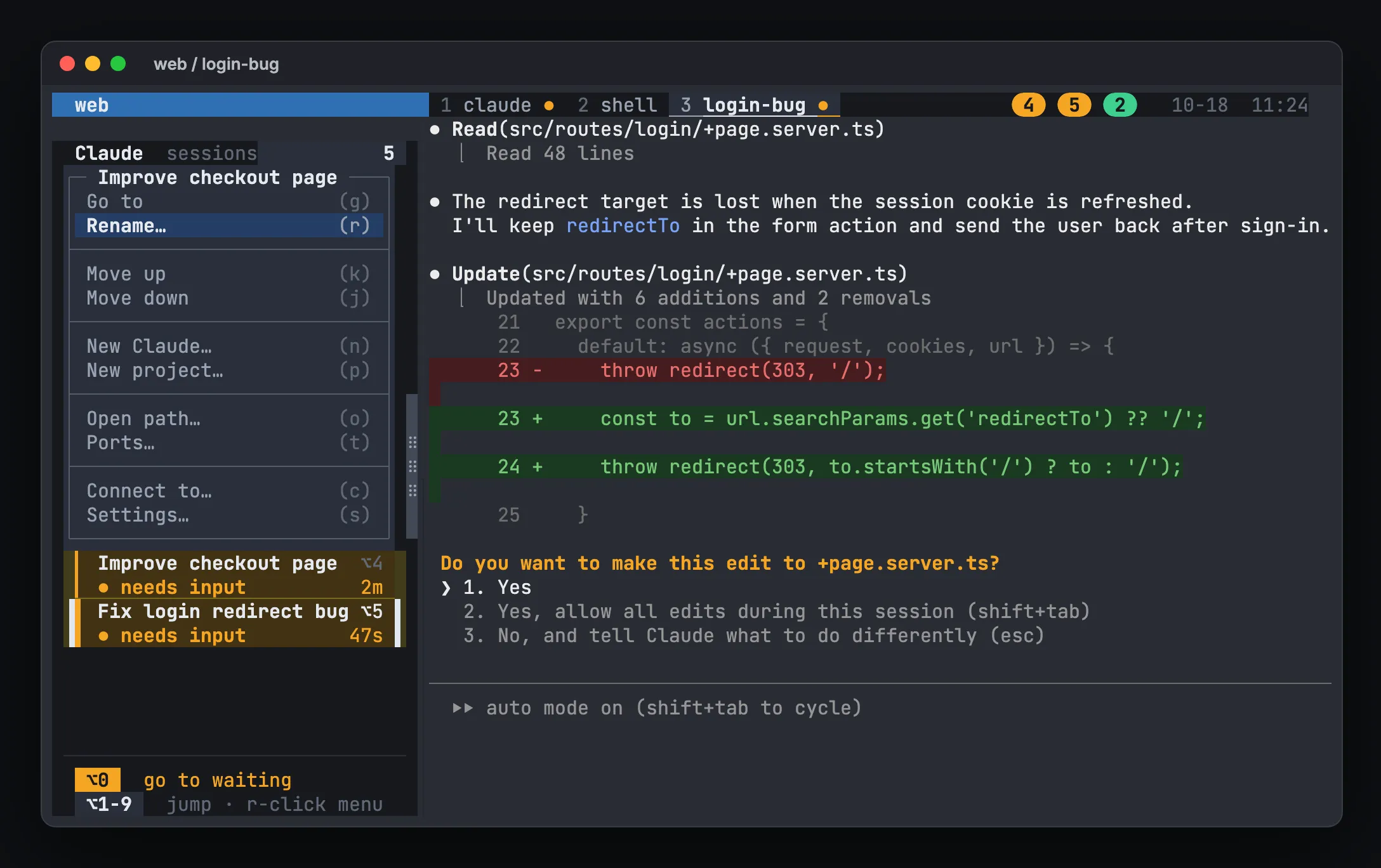
Reorder tasks and projects
Section titled “Reorder tasks and projects”Drag a card to reorder tasks within its project, or drag a project header to reorder projects. The drop target turns blue. Option+number and the top window list follow the same order.
Settings
Section titled “Settings”Right-click → Settings changes language, animation on/off, notifications on/off, sidebar width, the editor for Open path (VS Code, Cursor, Zed, Sublime Text or the text editor) and this Mac’s name. Changes apply at once and are saved in ~/.local/share/hivemux.
Open file paths
Section titled “Open file paths”| Key | Action |
|---|---|
Option+O |
popup listing file paths from this pane’s recent output (same as right-click → Open path) |
| type in the popup | filter the paths |
Enter |
open in the editor chosen in Settings, at the line when there is one |
Tab / Ctrl+F / Ctrl+Y |
default app / reveal in Finder / copy path |
⌘+click |
open paths and URLs that Claude printed as links |
Projects (sessions)
Section titled “Projects (sessions)”| Key | Action |
|---|---|
hm <dir> |
create the project session or switch to it |
prefix s |
pick from the session list |
prefix ( / ) |
previous / next session |
prefix Shift+S |
tree of all sessions and their windows |
prefix d |
detach; everything keeps running |
Windows (tabs)
Section titled “Windows (tabs)”| Key | Action |
|---|---|
prefix 1 … 9 |
go to window by number |
prefix n / p |
next / previous window |
prefix c |
new shell window |
prefix Shift+C |
new window with a named Claude |
prefix , |
rename the current window |
prefix & |
close the current window (confirm with y) |
| Key | Action |
|---|---|
prefix | |
split left/right, same folder |
prefix - |
split top/bottom, same folder |
prefix arrows |
move between panes; clicking works too |
prefix z |
zoom the current pane / unzoom |
The | and - splits come with the recommended keys.
Saving and more
Section titled “Saving and more”| Key | Action |
|---|---|
prefix Ctrl+S |
save now (autosave runs every 5 minutes) |
prefix Ctrl+R |
restore the last save by hand |
| menu → Connect to… | remembered hosts: Enter opens a new Ghostty window attached to that Mac, m switches between ssh and mosh, a adds one, d removes |
prefix Shift+H |
a new window attached to the last remote host |
prefix Shift+B |
the bee office window |
prefix Shift+R |
Remote Control server window |
prefix r |
reload the tmux config |
For more on tmux itself with Claude Code, see Claude Code and tmux.