Use Claude Code from another Mac with hivemux
hivemux lets a second Mac (say, a laptop) attach to the tmux of the Mac where your Claude Code sessions run, over ssh, with the same sidebar and sessions. Turn on Remote Login on the Mac you connect to, then on the laptop run hivemux connect --add me@work-mac.local once and hivemux connect me@work-mac.local to connect. If the connection drops, the work goes on.
How it works
Section titled “How it works”The work keeps running in one Mac’s tmux. The other Mac opens a new Ghostty window attached to it over ssh (or mosh). Local work on the laptop stays as it is; the remote one opens in its own window. hivemux needs to be installed on both Macs.
On the Mac you connect to
Section titled “On the Mac you connect to”- Install hivemux (see Install).
- Turn on System Settings → General → Sharing → Remote Login.
- Keep it from sleeping when idle (System Settings → Energy). It cannot be reached while asleep.
hivemux doctor checks Remote Login and sleep in its remote section.
On the Mac you connect from
Section titled “On the Mac you connect from”hivemux connect --add me@work-mac.local # check and remember (--mosh to use mosh)hivemux connect me@work-mac.local # or: right-click → Connect to…, prefix Shift+HThe first time, --add (or “+ Add a host…” in the Connect to… list) asks you to trust the host and for your login password there once, then adds this Mac’s ssh key there (making one if there is none), so later connections need no password. It also checks that hivemux is installed there.
The host is anything ssh takes: a Host from ~/.ssh/config, user@address, or a device name on a VPN. On the same network name.local works. From outside, a VPN such as Tailscale on both Macs is the simple way.
While connected
Section titled “While connected”- The remote window shows
⇄ <Mac name>at the right of the status line, before the clock. - A dropped connection reconnects by itself: a box in the middle counts down to the next try (
Entertries now,Ctrl+Cstops).prefix ddetaches and closes the window. - Notifications from the remote tasks show on this Mac.
- Two screens on the same project share it: switching windows on one moves the other.
- While a remote screen looks at a window, its sidebar keeps still (no pulsing cards, no status line spinner), because every animation frame would go over the network.
Dev server ports
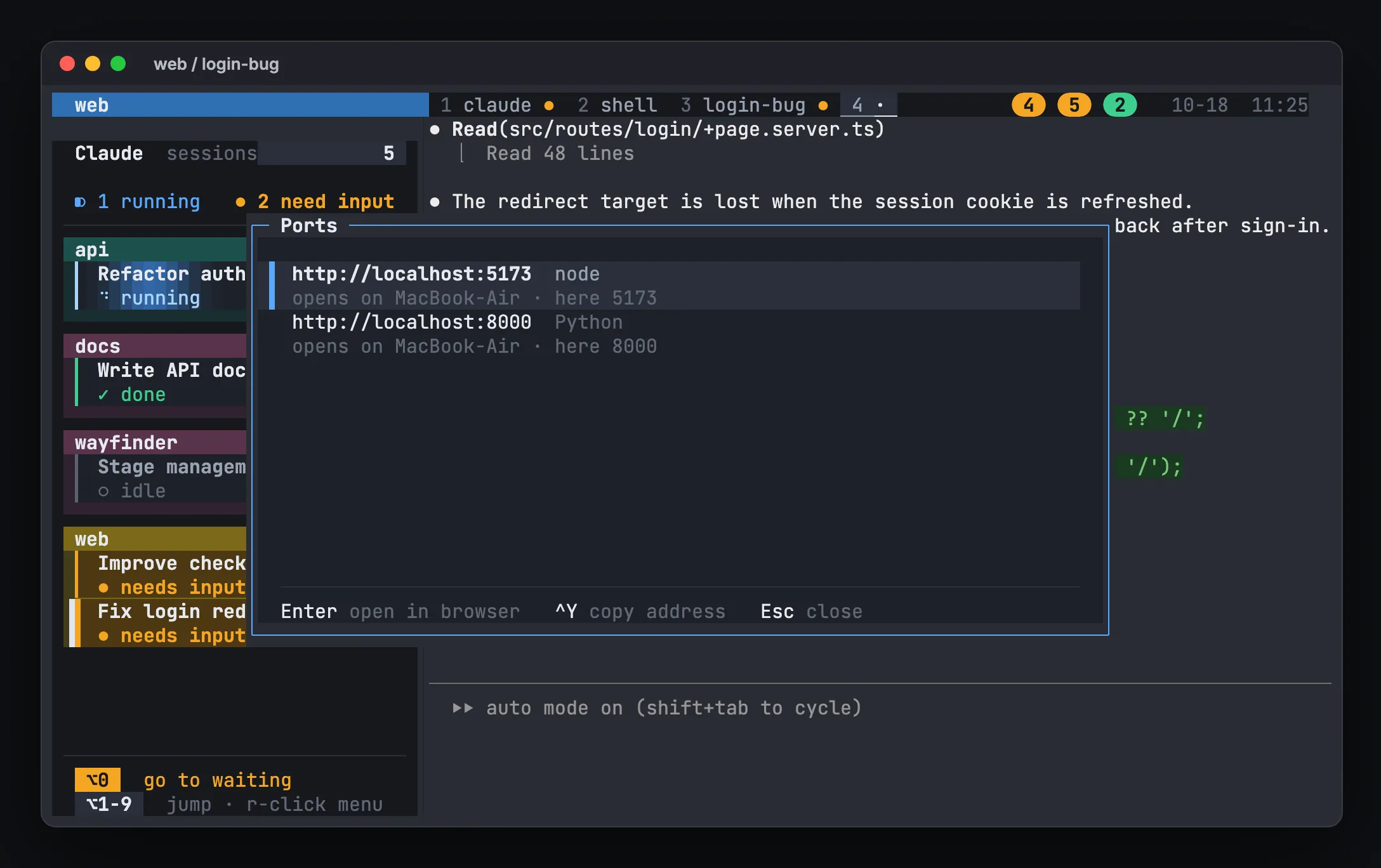
Section titled “Dev server ports”Dev servers started on the other Mac (npm run dev in a remote pane, say) are forwarded to the same port on this Mac’s localhost while connected. A server on 5173 there opens here at http://localhost:5173. A port already taken here goes to the next free one.
Option+W (or right-click → Ports) lists them on either Mac. Enter opens one in the browser of the Mac you connect from; Ctrl+Y copies the address.
From a terminal, or to turn forwarding off:
hivemux connect --portsHIVEMUX_PORTS=0 hivemux connect me@work-mac.localPaste images and open files
Section titled “Paste images and open files”Ctrl+Vin a remote Claude pane pastes the image on this Mac’s clipboard (a screenshot taken here, say): it is copied over and shows up as[Image #1]. Both Macs need hivemux 0.1.26 or later.hivemux open <file>in a remote pane (orTabin theOption+Opopup) copies the file to this Mac and opens it with its default app, so a screenshot Claude made there shows up here. The 🐝 button there opens the bee office here. Both Macs need hivemux 0.1.29 or later.- With VS Code or Cursor as the Open path editor,
Option+Oopens the file on the Mac you connect from over Remote-SSH (it needs the Remote - SSH extension there).
Use mosh
Section titled “Use mosh”With --mosh (or m in the Connect to… list), the session survives sleep and network changes by itself, but notifications do not pass through mosh; the list marks such a host “mosh · no notifications”. Both Macs need mosh:
brew install moshIf it stops at “Nothing received from server on UDP port”, allow incoming connections for mosh-server in the other Mac’s firewall.
For other ways to reach Claude Code away from your desk, including the phone app, see Claude Code remote access.