How to set up Claude Code in Ghostty with tmux
Short answer
Set Ghostty's `command` to a script that attaches to tmux, so every window opens inside tmux and closing Ghostty never stops Claude Code. Add `macos-option-as-alt = true` so Option shortcuts reach tmux and Claude. hivemux setup writes these lines for you; the repo's examples/ghostty.conf shows them.
Ghostty is a fast, native terminal for macOS and Linux with a plain-text config file. On its own it behaves like any terminal: close the window and the programs in it stop. Paired with tmux, it becomes a frame around long-lived sessions, which is what you want for Claude Code tasks that run for a while or wait for your approval. This guide shows the Ghostty settings that matter and how hivemux uses them.
Why Ghostty for Claude Code and tmux
hivemux works in any terminal where you start tmux yourself, but it recommends Ghostty for concrete reasons:
- A launch command. Ghostty’s
commandsetting runs a program in every new window and tab. Pointing it at a script that attaches to tmux means you never land in a bare shell by accident. - Option as Alt.
macos-option-as-altlets the Option key act as Alt/Meta, soOption+1…9and other Option shortcuts reach tmux and Claude Code instead of typing special characters. - Desktop notifications from the terminal. hivemux sends notifications as an OSC 777 terminal escape. Ghostty turns those into macOS notifications; terminals without OSC 777 support do not show them.
- Claude Code supports it directly. Anthropic’s terminal docs list Shift+Enter as working in Ghostty without setup, and Claude Code’s default notification channel shows desktop notifications in Ghostty (there is also an explicit
"ghostty"value for thepreferredNotifChannelsetting). Ghostty also forwards those notifications to your local notification center over SSH. - Scriptable windows.
hivemux connectopens a remote Mac’s session in a new Ghostty window.
Step 1. Install Ghostty and tmux
brew install --cask ghosttybrew install tmuxGhostty’s config file is ~/.config/ghostty/config. Create it if it does not exist.
Step 2. Make every window attach to tmux
The core idea is one line: run an attach script instead of a login shell. A minimal script could be tmux new-session -A -s main, which attaches to a session named main or creates it. hivemux ships a smarter one, hivemux-attach:
- With no tmux server running (after a reboot), it starts one, restores the last tmux-resurrect snapshot and resumes each Claude, then attaches to the session you were last looking at.
- With a server running, it attaches to the most recently used session that no other window shows, or creates a new numbered session when every session is already on screen.
So Cmd+T or Cmd+N in Ghostty gives you another view into tmux, not a separate world.
Step 3. Add the hivemux Ghostty settings
hivemux setup asks “Make every Ghostty window open inside tmux (hivemux-attach)?” and, on yes, adds this block between # >>> hivemux >>> markers. The same lines are in examples/ghostty.conf in the repo:
# every Ghostty window/tab attaches to tmux, so closing Ghostty never kills workcommand = /path/to/hivemux/bin/hivemux-attach# Option+1..9, Option+0, Option+O and Claude Code's Option shortcutsmacos-option-as-alt = truewindow-save-state = alwaysconfirm-close-surface = falseWhat each line does:
| Setting | Effect |
|---|---|
command |
Every window and tab runs hivemux-attach instead of a plain shell |
macos-option-as-alt = true |
Option works as Alt, so Option shortcuts reach tmux and Claude Code |
window-save-state = always |
Ghostty reopens its windows when it starts again |
confirm-close-surface = false |
No “are you sure” prompt when closing; tmux keeps the work anyway |
Install hivemux and run setup:
curl -fsSL https://hivemux.dev/install.sh | bashor with Homebrew:
brew install esteban-eg-kim/tap/hivemuxhivemux setupTo skip the Ghostty part, use hivemux setup --no-ghostty. hivemux uninstall removes only the marked block.
Step 4. Restart Ghostty fully
A Ghostty window that was already open keeps its old Option behaviour. Quit Ghostty with Cmd+Q and open it again. You should see a status line at the top and the hivemux sidebar on the left: you are inside tmux.
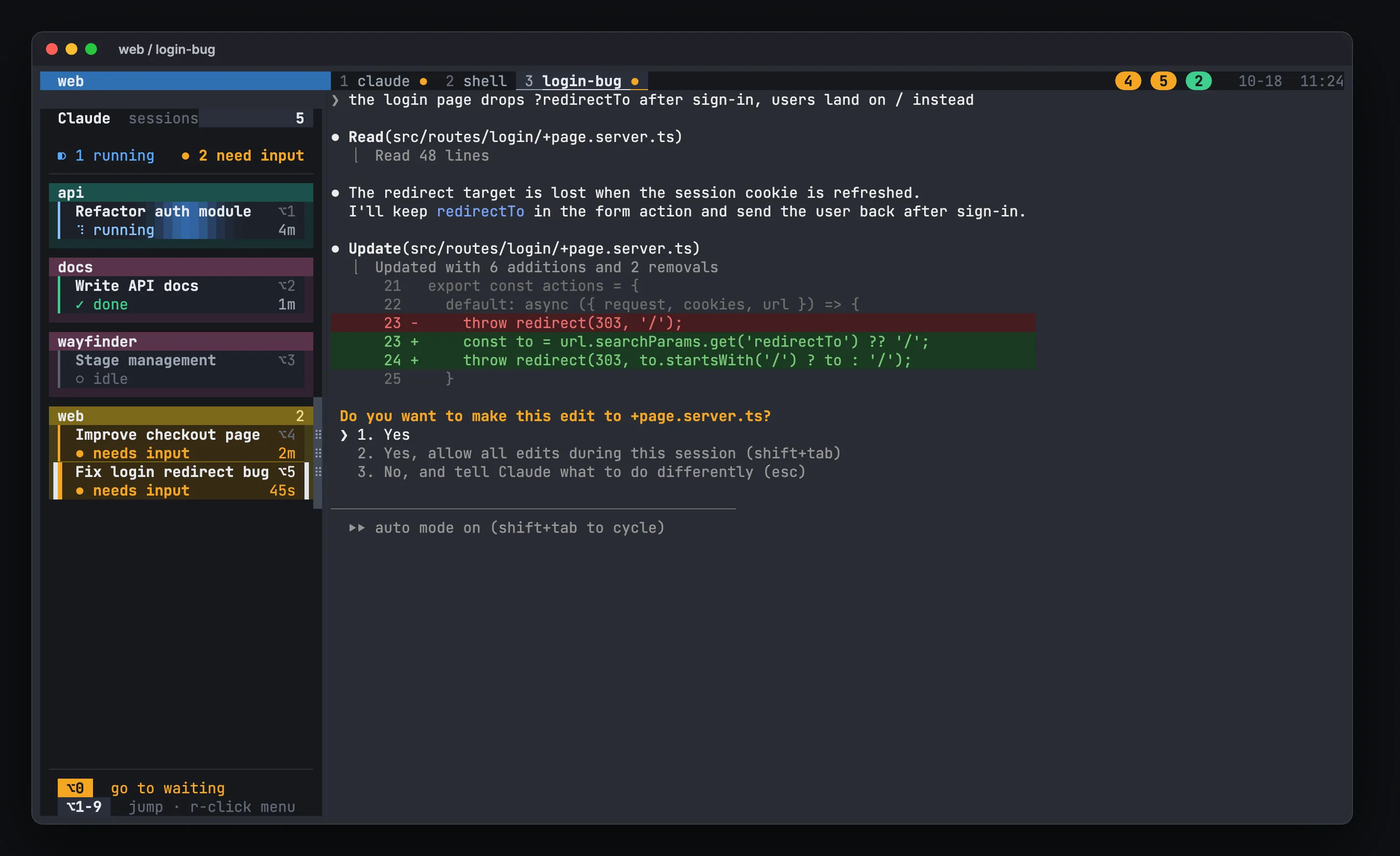
Now open a project and start working:
hm ~/code/apiOption+1 jumps to the first Claude in the sidebar, Option+0 to the one that has waited longest. If Option shortcuts still do nothing, Ctrl+A then Space does the same as Option+0.
Step 5. Allow notifications
hivemux notifies you when a Claude needs input or finishes, except the one you are looking at. In macOS, open System Settings → Notifications and allow Ghostty. In the sidebar, right-click → Settings → Notifications must be on. See How to get notified when Claude Code needs input for the full picture.
Optional: font and Korean/CJK text
Fonts are set in Ghostty and apply to the whole terminal, including the sidebar. Find installed names, then add lines outside the hivemux block:
/Applications/Ghostty.app/Contents/MacOS/ghostty +list-fonts | grep -v "^ " | sort -ufont-family = "JetBrains Mono"font-size = 15# a second font-family is used for characters the first one lacks# font-family = "D2Coding"Reload with Cmd+Shift+,. A bigger font means fewer columns, so you may want a narrower sidebar (right-click → Settings → Sidebar width).
Using another terminal
iTerm2, Terminal.app or any other terminal works: start tmux (or tmux attach) yourself in each window, and set that terminal’s Option key to send Meta/Esc+ so Option shortcuts work. What you lose is the automatic attach on every new window and, in terminals without OSC 777 support, the desktop notifications.
Next: /docs/quick-start/ for a first project, or /docs/keys/ for every shortcut.
FAQ
Option+1 does nothing in Ghostty. Why?
Ghostty has to send Option as Alt. Set `macos-option-as-alt = true`, then fully quit Ghostty and open it again; reloading the config does not change a window that was already open.
Do I need Ghostty to use hivemux?
No. Any terminal works if you start tmux yourself. Ghostty is recommended because hivemux setup can make every Ghostty window attach to tmux, and Ghostty shows the terminal notifications hivemux sends.
How do I change the font in Ghostty?
Add `font-family` and `font-size` lines to ~/.config/ghostty/config, outside the hivemux block, and reload with Cmd+Shift+comma. `ghostty +list-fonts` lists installed font names.
Will closing Ghostty stop my Claude Code sessions?
Not when Ghostty attaches to tmux. tmux owns the processes, so Claude keeps running and the next Ghostty window attaches to the session you were last looking at.