How to continue Claude Code from your phone or another Mac
Short answer
To use your phone, turn on Remote Control and the Claude app or claude.ai/code shows and drives sessions still running on your Mac; it needs a Pro, Max, Team or Enterprise login. For a full terminal on another Mac, attach to the first Mac's tmux over ssh; hivemux connect does this with reconnects, notifications and dev server port forwarding.
Long Claude Code tasks do not need you at the desk, only when they stop to ask something. There are two ways to keep going from elsewhere: Anthropic’s Remote Control, which puts a running session in the Claude app on your phone or in a browser, and attaching to the Mac’s terminal from another Mac over ssh. They solve different problems and work well together.
Part 1. From your phone: Remote Control
Remote Control connects claude.ai/code or the Claude app for iOS and Android to a Claude Code session running on your machine. Code runs and files are read on the Mac; the phone shows the conversation and sends messages.
Requirements: a Pro, Max, Team or Enterprise plan (on Team and Enterprise an Owner must enable it), signed in with your claude.ai account through /login. API keys are not supported. Sign in to the Claude app with the same account; sessions appear under Code.
Step 1. Turn it on
There are three ways:
# a session that is also remotely controllableclaude --remote-control          # or: claude --rc
# inside a running session (shows a QR code and URL)/remote-control
# server mode: start new sessions from the phoneclaude remote-control
To have every session connect automatically, use /config → “Enable Remote Control for all sessions”. hivemux setup offers the same thing as one of its three questions, setting remoteControlAtStartup in ~/.claude/settings.json.
Step 2. Start new sessions from the phone
Connecting existing sessions is not enough if you want to start a task from your phone. That needs server mode in a folder. In server mode, --spawn decides where new sessions run (same-dir, worktree or session).
With hivemux, prefix Shift+R opens a server window for the current folder. In a git repository it uses --spawn worktree, so each session from the phone gets its own worktree and they do not collide; elsewhere it uses same-dir. The first time, answer yes to enabling Remote Control and to trusting the folder.
Step 3. Get pushes for approvals
In Claude Code, open /config and turn on Push when actions required. The phone gets a push when a session needs approval.
Keep the Mac awake
Your computer has to stay on and the claude process has to keep running. If the laptop sleeps or the network drops, Claude Code reconnects when the machine comes back, but nothing happens while it sleeps. Closing a laptop lid puts it to sleep; keep it on power with an external display, or run:
caffeinate -disRunning Claude inside tmux helps here too: closing the terminal does not end the process, so the phone keeps its connection.
Part 2. From another Mac: attach over ssh
Remote Control gives you the conversation. Sometimes you want the whole terminal: shells, git, logs, every session at once. The generic approach is to keep the work in tmux on one Mac and attach from the other:
ssh me@work-mac.localtmux attachTurn on System Settings → General → Sharing → Remote Login on the Mac you connect to, and keep it from sleeping. On the same network name.local works; from outside, a VPN such as Tailscale on both Macs is the simple way (opening ssh to the internet with port forwarding is not recommended). This works, but a dropped connection leaves you at a dead prompt, dev servers on the other Mac are not reachable at localhost, and notifications stay on the other Mac.
Step 1. Connect with hivemux
hivemux is a tmux sidebar that shows every Claude Code session — running, waiting for you, or done — and lets you jump to the one that needs you. hivemux connect attaches to another Mac’s hivemux in its own Ghostty window, with the same sidebar and sessions. Install hivemux on both Macs:
brew install esteban-eg-kim/tap/hivemuxhivemux setupThen, on the Mac you connect from:
hivemux connect --add me@work-mac.local # check and remember (--mosh to use mosh)hivemux connect me@work-mac.local # or: right-click → Connect to…, prefix Shift+HThe first --add asks you to trust the host and for your login password there once, then adds this Mac’s ssh key so later connections need no password. The host can be anything ssh takes: a Host from ~/.ssh/config, user@address, or a VPN device name.
Step 2. Work as if you were there
- The remote window shows
⇄ <Mac name>in the status line. Local work on this Mac stays as it is. - A dropped connection reconnects by itself, with a countdown in the middle of the screen (
Entertries now,Ctrl+Cstops). - Notifications from remote tasks show on this Mac.
Ctrl+Vin a remote Claude pane pastes the image on this Mac’s clipboard, for example a screenshot you just took.hivemux open <file>in a remote pane copies the file to this Mac and opens it with its default app, so a screenshot Claude made there shows up here.
Step 3. Open the other Mac’s dev servers
Dev servers started inside the other Mac’s tmux (npm run dev, rails s and the like, by Claude or by you) are forwarded to the same port on this Mac’s localhost while connected. A server on 5173 there opens here at http://localhost:5173, so sign-in callbacks and cookies need no changes. If the port is taken here, the next free one is used. Option+W (or right-click → Ports) lists them; Enter opens one in the browser of the Mac you connect from.
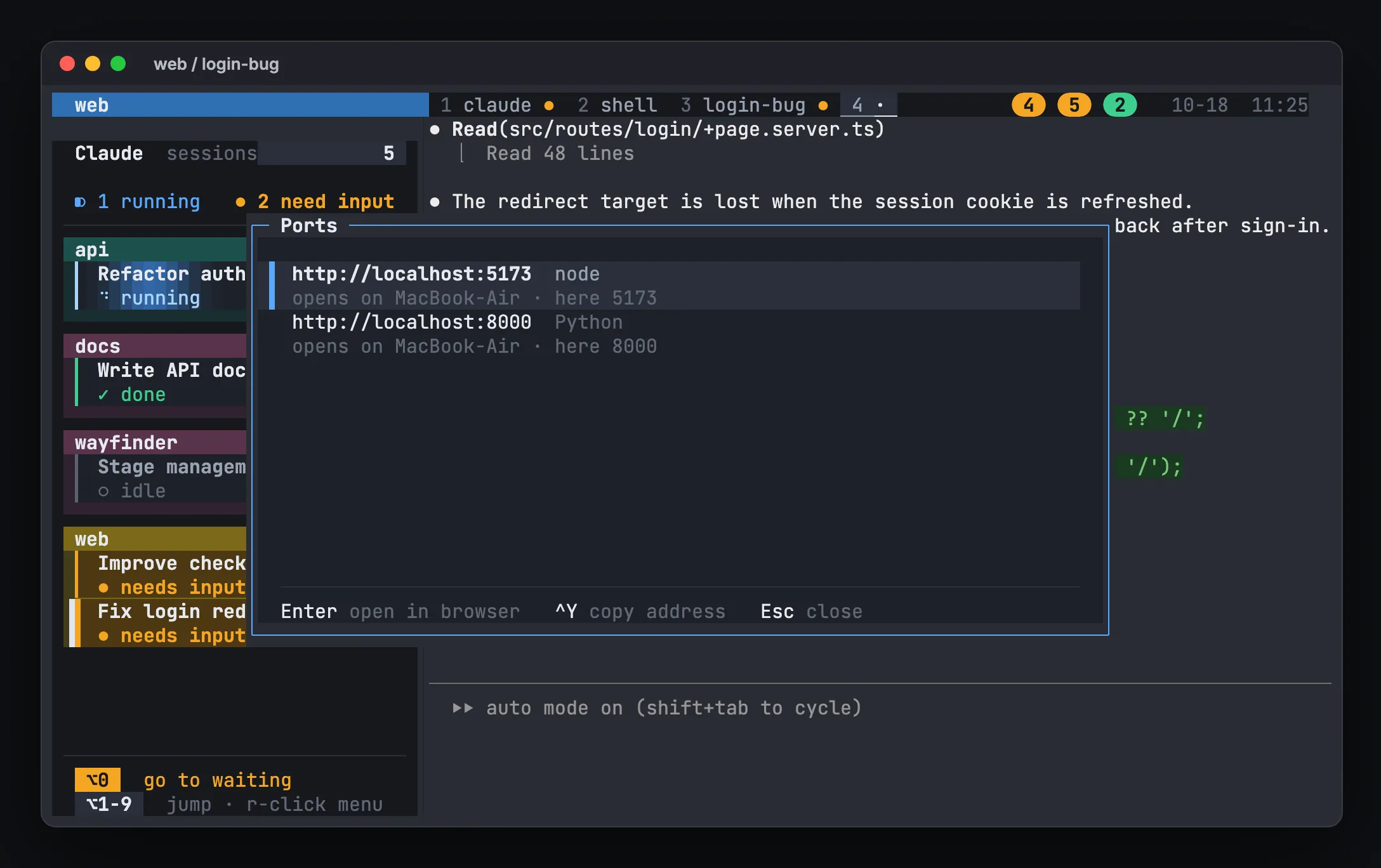
To turn forwarding off, connect with HIVEMUX_PORTS=0 hivemux connect <host>.
ssh or mosh
With --mosh (or m in the Connect to… list), the session survives sleep and network changes by itself, but notifications do not pass through mosh; the list marks such a host “mosh · no notifications”. Both Macs need brew install mosh. Port forwarding still works over a separate ssh connection.
Which one to use
- Away from any computer: Remote Control on your phone, with push for approvals.
- On a laptop, wanting the full setup:
hivemux connectto the Mac doing the work. - Both: they coexist. The sessions are the same
claudeprocesses, so you can approve from the phone on the way and pick up in the terminal later.
Full details: /docs/another-mac/. Related: How to get notified when Claude Code needs input.
FAQ
Does Remote Control run Claude Code in the cloud?
No. Claude keeps running locally the whole time; the phone or browser shows the conversation and sends messages. Your computer has to stay on and the claude process has to keep running.
Why do my sessions not show up in the Claude app?
Remote Control needs a claude.ai subscription login, not an API key; check with `claude auth status`. Sessions started before Remote Control was turned on do not connect by themselves; type /remote-control in them.
What happens if the ssh connection to the other Mac drops?
The work keeps running in that Mac's tmux. hivemux connect shows a countdown and reconnects by itself; Enter retries at once and Ctrl+C stops.
Can I open a dev server running on the other Mac in my local browser?
With hivemux connect, ports that dev servers listen on inside the remote tmux are forwarded to the same port on your local localhost while connected, so http://localhost:5173 works as usual.